Accessibility by Development: Using AI to Make Accessibility Work Practical
Accessibility is one of those topics everyone agrees is important and few teams consistently operationalize. Developers face vague standards, inconsistent examples, and tools that either over-report trivial issues or miss structural ones entirely.
We asked a naive question: can AI help us improve accessibility in a meaningful way?
Not by magically fixing everything. But by assisting developers with the hardest part: understanding what a component is supposed to do from an accessibility perspective and translating that into concrete implementation and tests.
This post walks through the experiment, what worked, what didn’t, and what it taught us about combining AI, end-to-end tests, and accessibility patterns in real-world frontend systems.
Accessibility Is Structural, Not Cosmetic
Disclaimer: Yes, this is that classic opening to an accessibility blog post. You know the one — where someone inevitably says “start with good HTML” and we all nod like we haven’t heard it a thousand times. If you can already predict every word that’s about to happen next, feel free to skip ahead to “I don’t know what accessibility means.”
Most engineers have heard the rule: use semantic HTML instead of random div elements.
It sounds obvious, yet many modern applications are built as a sea of divs driven by JavaScript interaction.
The reason semantic HTML matters is simple. Most native HTML elements already encode accessibility behavior. A <button> is focusable. A <label> associates text with input. A <fieldset> groups controls. When we abandon those primitives, we take on the burden of re-implementing their behavior correctly.
ARIA roles and attributes can fill gaps, but they are easy to misuse. They are not decorative metadata. They change how assistive technologies interpret the interface. Incorrect ARIA is often worse than none.
On top of that, accessibility guidance online is fragmented. There are many single-use examples and plenty of incorrect ones. That makes AI-based solutions unreliable if they are asked broad, poorly scoped questions. We tried that first.
I don’t know what accessibility means
The title of this section sits right in the middle of a provocative remark — and honestly, it reflects where I truly was (am) in my accessibility journey. I began with only a surface-level understanding of what needed to be done. That mindset pushed me to explore, experiment, and, make mistakes — each one teaching me more about how to meaningfully improve accessibility.
And I want to be clear about this: my journey into accessibility is still at the beginning. I’m absolutely not an accessibility expert. But after digging into the topic, I definitely know more than when I started — and I’m still learning every step of the way.
What guided me from the beginning were two simple goals:
- Create something that helps developers start building with accessibility in mind from day one.
- Design a resource that works both as a set of guidelines and as a practical tool developers can use to uncover issues and solve them.
Why Naive AI Prompts Fail
Everything began with a clear goal: improving accessibility in our team project — the exercise rendering library that transforms raw content into interactive activities for students.
The first attempt was straightforward: feed the repository to AI and ask how to improve accessibility.
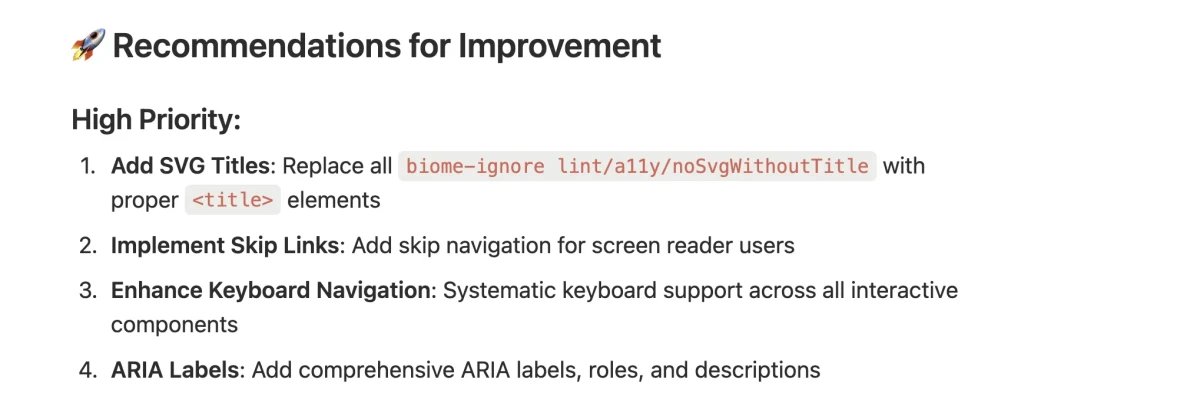
The output was technically valid but poorly prioritized. For example, it flagged missing SVG titles. That is a real issue, but not the one that blocks keyboard navigation or breaks screen reader flows. The problem was scope. The prompt was too broad. Accessibility is too large a domain to be summarized meaningfully without context. AI responded with generic audit items instead of actionable guidance.
Using End-to-End Tests as the Foundation
After a few attempts to generate reports with the help of AI — using more structured prompts and even referencing developer-oriented accessibility checks — we still weren’t getting much additional value.
The turning point was combining AI with end-to-end tests.
Libraries like Cypress or Playwright allow you to simulate real user interaction in the browser. When combined with axe-core, they can detect many static accessibility issues automatically.
Our first attempt was to run a test with Axe across the full page, which includes a side navigation listing all exercises for the chapter and a main area displaying the exercises in sequence. But because we needed to narrow the scope, we then focused specifically on testing keyboard navigation for the first exercise.
The report surfaced many issues, but they were mixed together. Static violations were buried among structural problems. None of them directly addressed keyboard navigation, which was our focus.
So we narrowed the scope further.
Instead of testing the entire flow, we targeted a single interaction type. Then we defined a concrete goal: verify keyboard behavior.
Accessibility improvements became incremental, component by component.
One important insight here: a component is never “accessible” in isolation. However, we can make individual components behave correctly in terms of semantics and interaction, which significantly improves the overall system.
Grounding AI in Trusted Accessibility Patterns
The next problem was reference quality. AI without grounding produces uneven results.
To improve that, we anchored the workflow to established accessibility patterns. The WAI-ARIA Authoring Practices provide detailed descriptions of how common components should behave: radio groups, menus, tabs, dialogs, and so on.
These patterns are not universally agreed upon. Some developers consider them overly complex. There are ongoing discussions in the community about trade-offs. Still, they are the closest thing to a structured reference for common interaction models.
The idea was:
- Identify the component.
- Map it to a known accessibility pattern.
- Extract required keyboard interactions.
- Derive semantic HTML and ARIA requirements.
- Generate test scenarios based on that behavior.
The Custom Agent Workflow
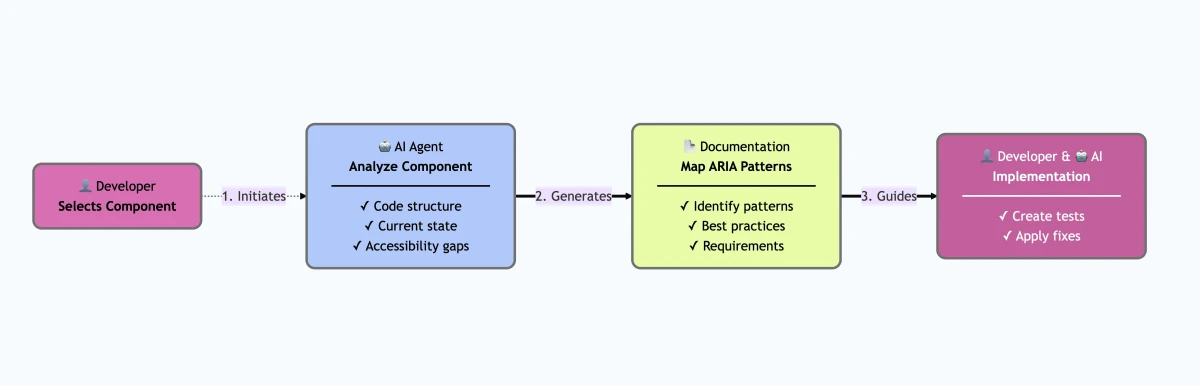
We implemented this as a custom AI agent defined in Markdown, enriched with instruction files that described:
- How to identify a component.
- How to map it to an ARIA pattern.
- How to extract keyboard interaction rules.
- How to generate an audit document.
- How to generate test scenarios.
The output was a document per component containing:
- Required keyboard interactions.
- Recommended HTML elements.
- Best practices.
- Suggested end-to-end test cases.
The process deliberately stopped there! The document was reviewed by a developer. AI could assist with fixes, but only after a human validated the reasoning.
This separation matters because accessibility decisions often require context. Blind automation leads to brittle compliance theater.
Example: Fixing a Radio Group
One of the first components we tested was a Single Select interaction in the exercise flow. Conceptually, this is a radio group.
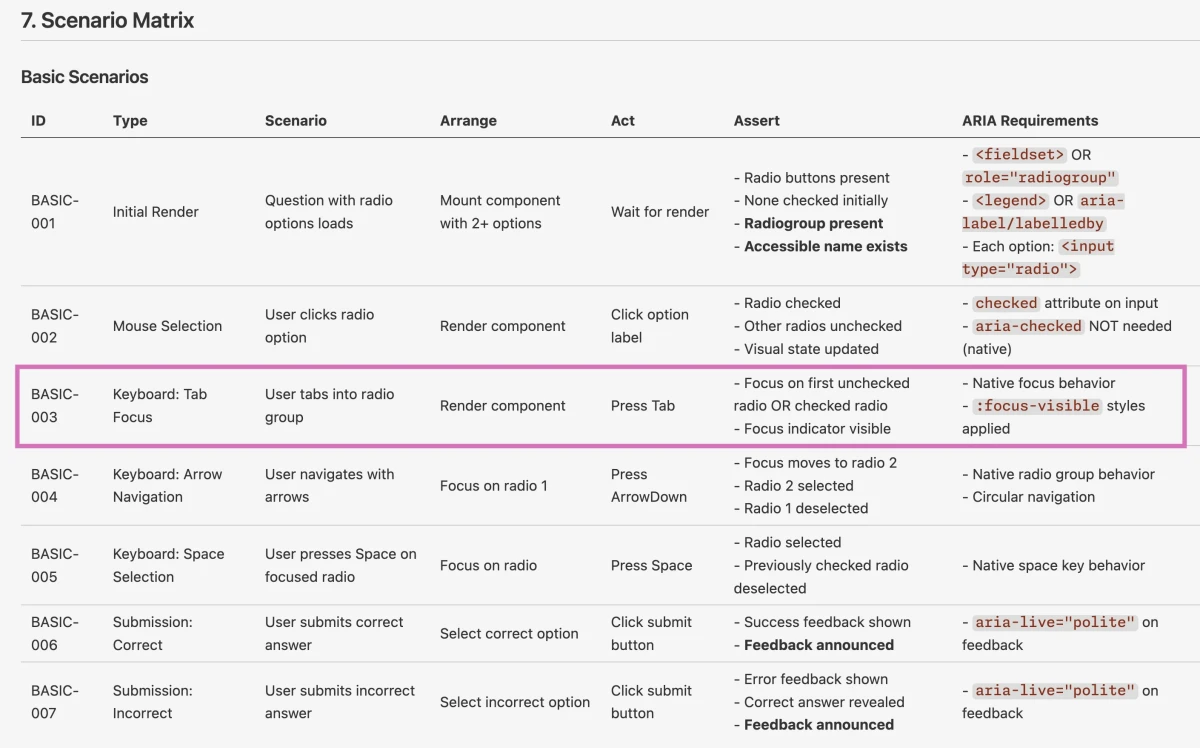
The AI custom agent generated:
- Keyboard requirements: arrow keys to move selection, tab to enter the group.
- Semantic requirements: use
<input type="radio">grouped by name. - Test scenarios: verify tab focus, arrow navigation, visible focus indication.
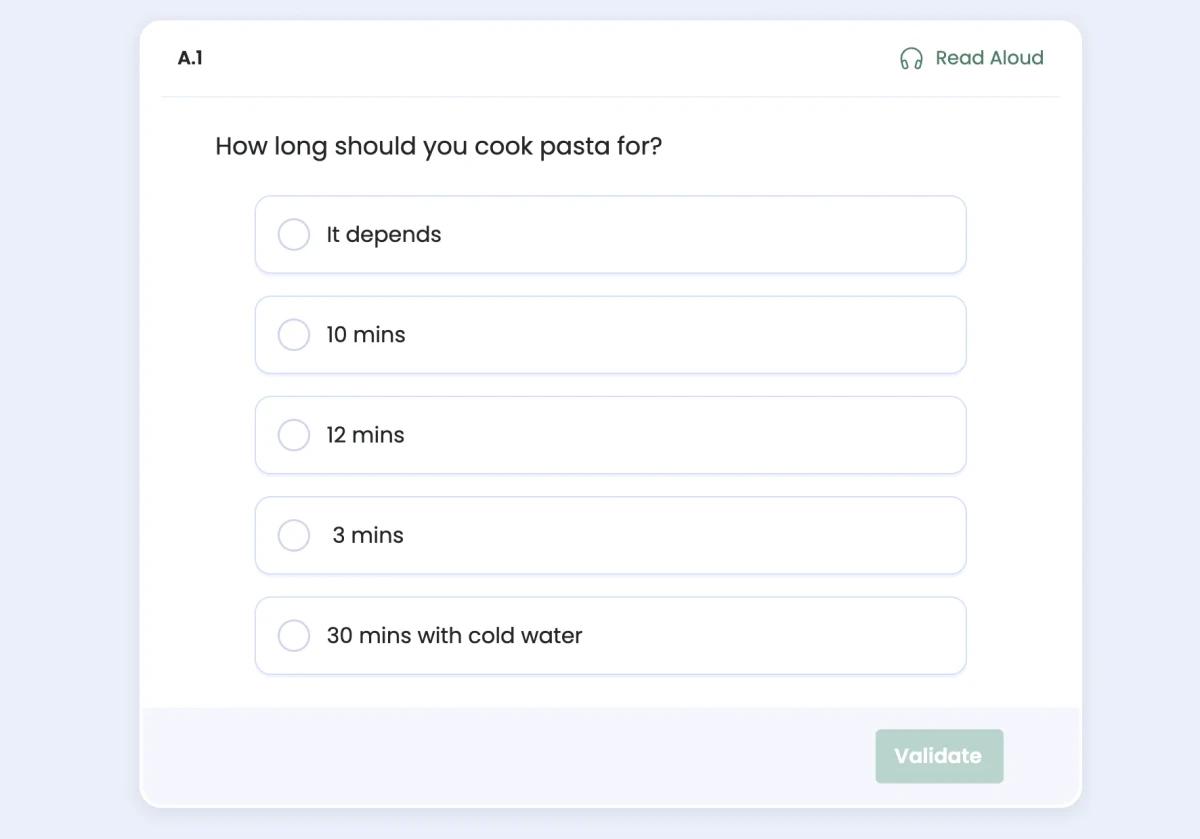
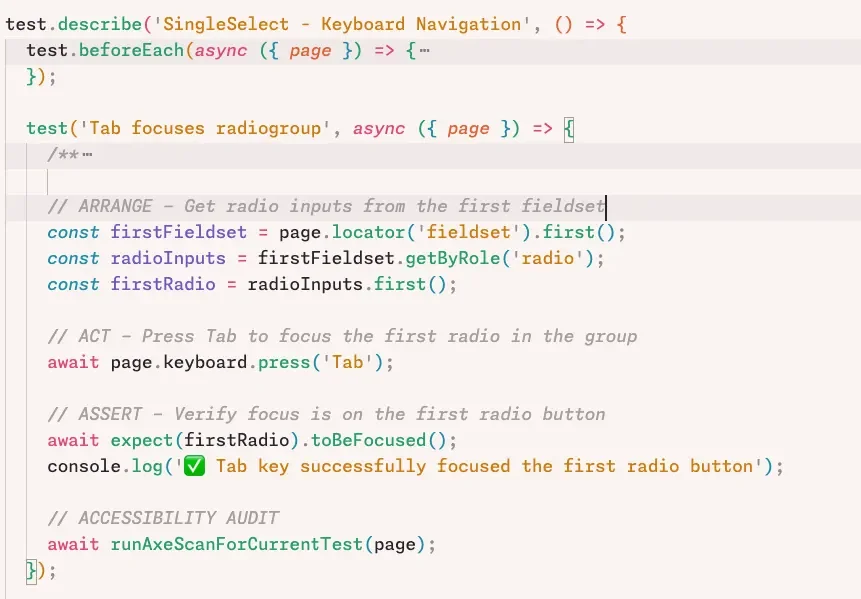
We then generated a Playwright test that simulated pressing the Tab key and verified that focus moved to the first radio button. The test failed.
The implementation was missing correct tab behavior. AI identified the absence of a tabindex and proposed a fix. After applying it, the test passed. But this was not the end.
The focus was not visually apparent. The test did not initially check for visible focus styles. We had to refine the test itself to validate focus visibility. This exposed a crucial lesson: AI can generate tests that pass but fail to assert the right thing. Without critical review, you can end up with green tests and broken UX.
Once both tab behavior and focus visibility were corrected, screen reader output also improved. Navigating the radio group triggered proper announcements of option labels and states. The value was not in AI “fixing” accessibility. It was in accelerating the feedback loop between expected behavior, implementation, and verification.
Applying the Approach to a Menu Component
We applied the same workflow to another project using a menu button component built on top of Radix primitives.
Since Radix has strong accessibility defaults, we expected minimal findings. That was mostly true, but subtle issues surfaced:
- A checked and disabled menu item did not display its check icon correctly.
- Modal behavior of the menu made background content inert for screen readers.
- Tab key behavior did not align fully with ARIA recommendations.
The modal behavior raised a design decision.
When a menu opens over a list, should screen readers be able to reference the underlying element?
If the menu is modal, background content becomes inaccessible. In some contexts that is correct. In others, it hides useful information.
This is where accessibility stops being mechanical and becomes architectural. AI can flag deviations from patterns. It cannot decide product intent.
Another subtle point was tab handling. Some ARIA patterns suggest that pressing Tab closes the menu. In practice, this behavior is controversial. Not every application follows it. Blindly enforcing patterns without considering UX consistency can cause regressions.
The workflow surfaced these decisions explicitly. That alone was valuable.
What AI Actually Contributed
AI did not “solve” accessibility but it contributed in three practical ways:
- It generated structured documentation for components that lacked it.
- It proposed test scenarios aligned with accessibility patterns.
- It assisted in implementing small, well-scoped fixes when guided by failing tests.
It was most effective when:
- The component was clearly mapped to a known pattern.
- The scope was narrow.
- Tests were already in place.
- A developer reviewed every step critically.
It was least effective when asked broad, ambiguous questions.
Different models produced noticeably different output quality. Some generated verbose Markdown with weak prioritization. Others provided more structured and precise documents. Model selection matters when building such workflows.
Not a Silver Bullet: The Limits of Automation
Automated validators, including axe and browser plugins like WAVE, are useful. They quickly surface missing labels, contrast problems, and ARIA misuse.
They also miss context.
A page full of divs wired with JavaScript can pass certain validators while remaining unusable for keyboard-only users. AI systems can suffer from the same blindness. They evaluate structure, not lived experience.
Accessibility requires human judgment. It requires testing with keyboard only. It requires listening to screen reader output. It requires understanding the user journey.
No tool replaces that.
What tools can do is reduce the cognitive overhead of finding the right documentation and translating standards into tests.
A Practical Path Forward
This experiment demonstrated a workable pattern:
- Start with a single component.
- Map it to an accessibility pattern.
- Generate explicit keyboard requirements.
- Write failing end-to-end tests.
- Use AI to assist in implementing fixes.
- Review the result manually with keyboard and screen reader.
This approach scales across projects because most web applications are built from recurring component types.
It also lowers the barrier for developers unfamiliar with accessibility. Instead of searching through fragmented documentation, they receive a structured starting point.
That does not create compliance. It creates informed iteration.
The Real Outcome
The most valuable outcome was not the generated documents or tests. It was the conversations.
Accessibility moved from an abstract compliance topic to a concrete engineering practice. Developers debated modal behavior. Designers highlighted keyboard-only navigation. Small bugs became visible because someone had articulated what correct behavior should look like.
AI helped structure the work. End-to-end tests enforced it. Humans decided what mattered.
Accessibility is not something you “apply” at the end. It is something you operationalize component by component, with clarity about intent and behavior.
AI can support that process. It cannot replace the thinking behind it.
That distinction is the difference between passing a validator and building a product people can actually use.
Written by